
Active Sessions : I want to log in on another device but I can’t, why?
❓ I want to log in on another device but I can’t, why?
For security reasons, your account can only be active on two devices at a time. If you try to log in from a third device (computer, phone, or tablet) while still logged in on another, access will be blocked.
To log in on a new device, you must first disconnect your previous active session:
- If you have already two sessions active, remember to Log out one before opening a new one.
- Log out active sessions by clicking Log out everywhere else or Log out.
- Connect on your new device: You can now log in normally from your other device.

Visual guide: Click “Log out everywhere else” or “Log out” to disconnect previous sessions.
Important Notice
Simultaneous connections are strictly restricted to 2 devices. If you forgot to log out from a public or shared computer, use the Log out everywhere else button to secure your account and unblock access for your current device.
How to book a Lesson/Event on the platform?
📅 How to book on the platform?
To book an individual lesson or a group workshop on École Napoléon, head directly to our website’s Booking section and follow these steps:
- Select your service: Go to the booking section on our website and choose the course or workshop you want to enroll in.
- Pick a time slot: Browse the available calendar dates and select a convenient time.
-
Complete registration or Checkout:
- For Paid Courses: Simply proceed to checkout and select your preferred payment method.
- For Free Courses: Continue through the remaining steps to the end, and your booking will be confirmed automatically.
- Confirmation & Class Access: Once completed, you will receive your booking details and meeting link directly in your confirmation email.
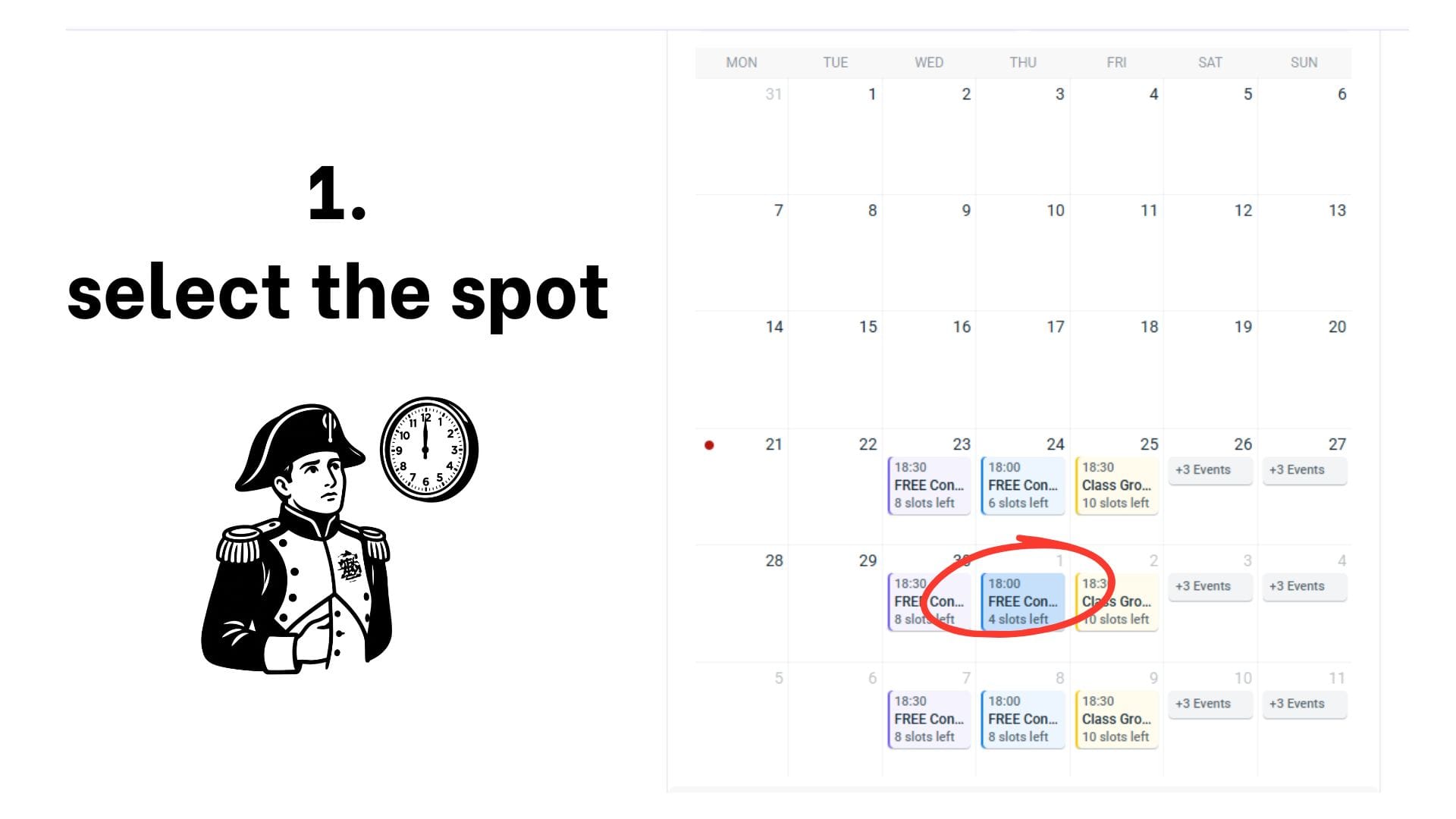
Step 1: Selecting your preferred service and course type in the booking section.
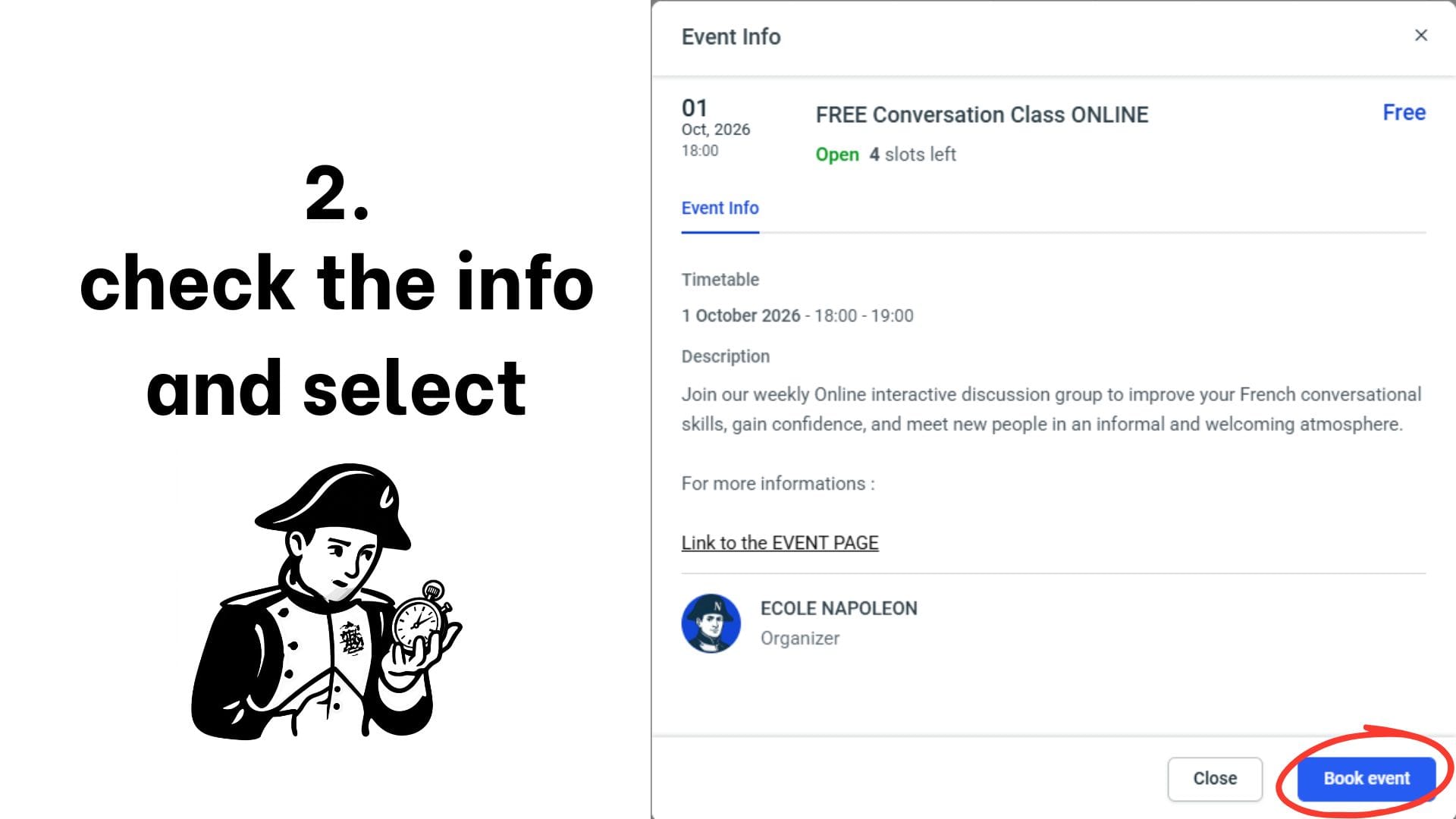
Step 2: Checking the interactive calendar and picking an available time slot.
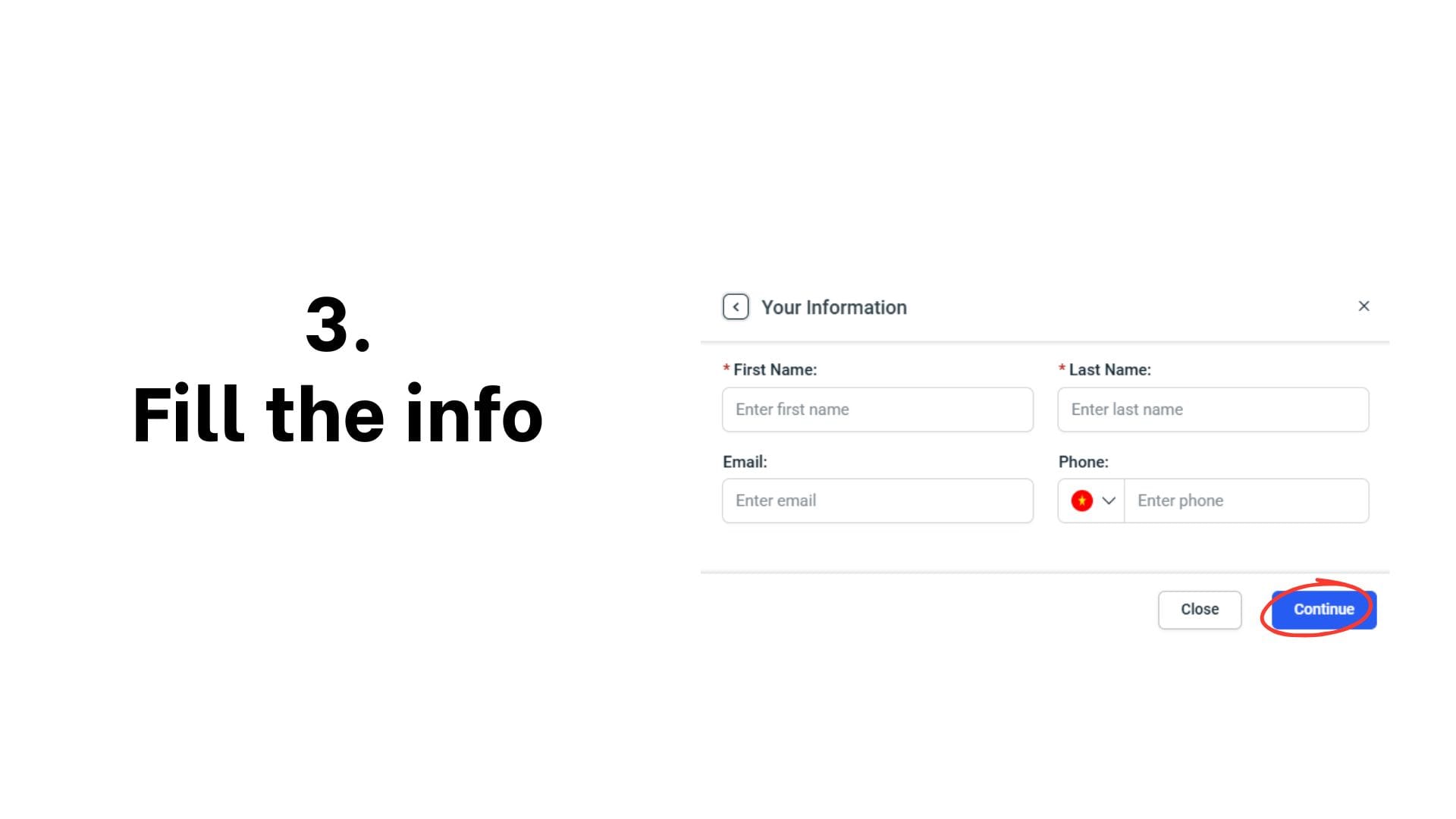
Step 3: Filling in your details and student information.

Step 4: For paid courses, proceed to checkout and select your payment method. For free courses, continue directly to final validation.
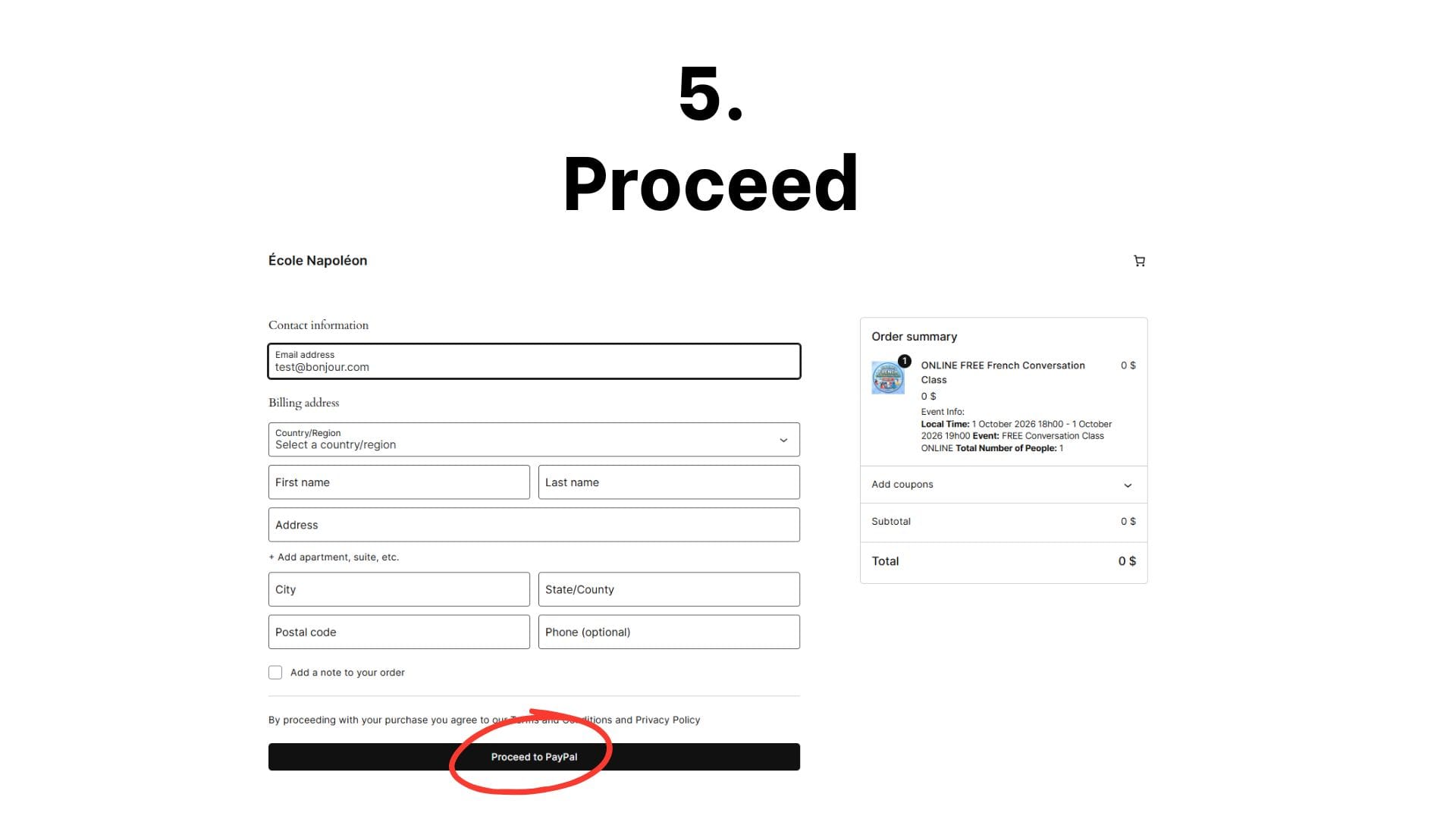
Step 5: Reviewing booking summary and finalizing order confirmation.
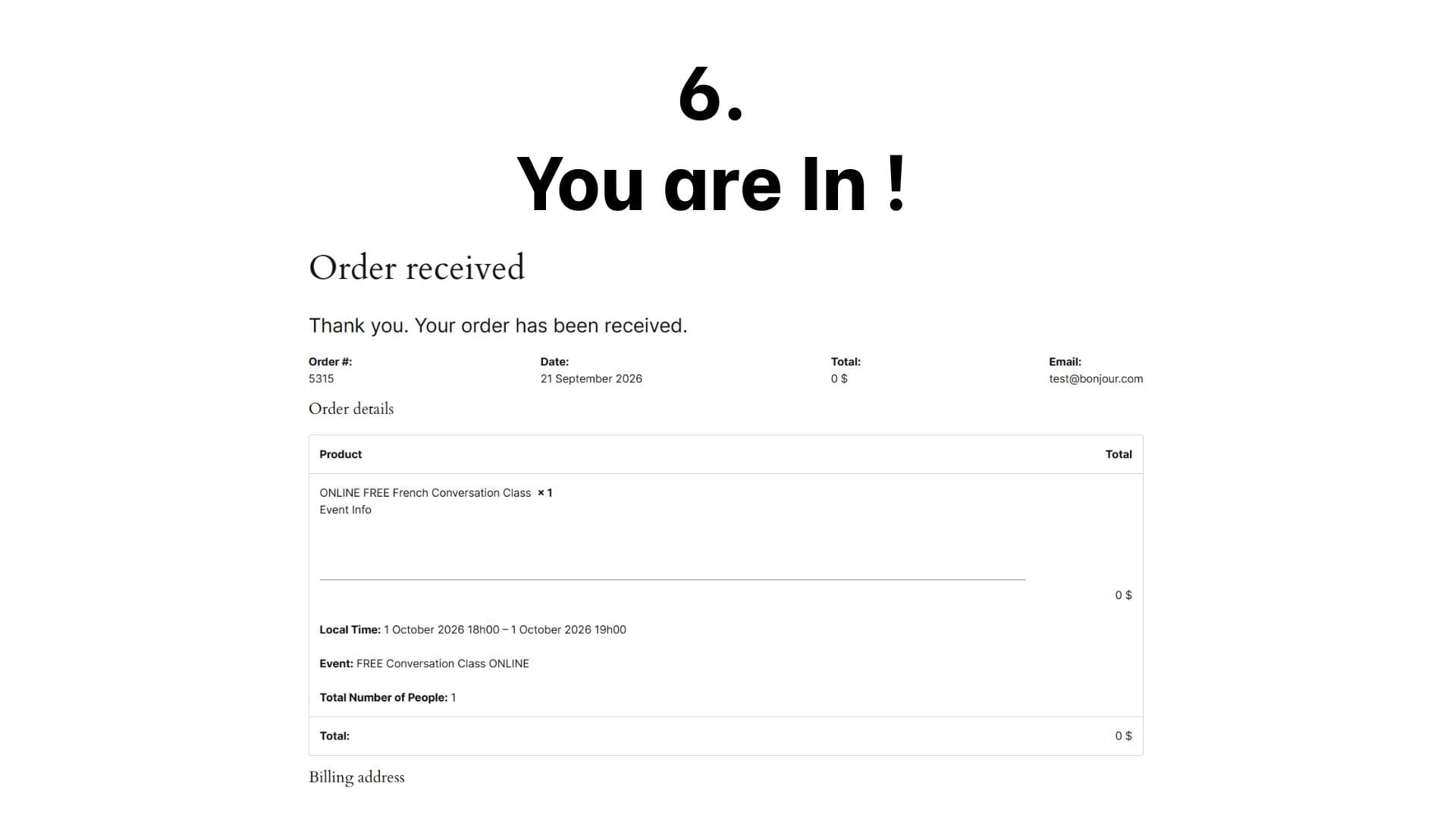
Step 6: Automatic validation completed — your booking is now confirmed.
⚠️ IMPORTANT NOTICE
Please make sure you complete the process through to the end (or complete checkout for paid options) to lock in your seat. Unconfirmed bookings will automatically expire after a short duration.
How to cancel or reschedule a booked lesson?
🔄 How to cancel or reschedule a booked lesson/event?
If you have a schedule conflict, you can manage your appointments directly from your account:
- Log in: Access your account on the Your Profile page.
- Locate your booking: Go to the Appointments tab to view your list of upcoming lessons.
- Open options: Click the three dots icon (…) on the right-hand side of your appointment entry to open the actions menu.
- Confirm change: Select Reschedule to choose a new date and time on the calendar, or click Cancel to release your slot.

Step 1: Locating your booking in your profile and opening the options menu via the three dots.

Step 2: Selecting Reschedule or Cancel to modify your time slot or release your reservation.
⚠️ CANCELLATION POLICY
Cancellations and rescheduling must be performed at least 24 hours prior to the scheduled start time. Late cancellations will not be eligible for credit restoration.